The Fastest and Most Secure Commercial Terminal Emulation Solution.
Increase efficiency and preserve data integrity with the robust and feature-rich GSW Windows Telnet and SSH Server. Perfectly paired with the GSW ConnectBot, SSH/Telnet Client for Android.
Telnet Server for Windows
with Universal Terminal Server
UTS is a robust and reliable terminal communications framework available in Telnet or SSH Server configurations.
SSH Server for Windows
with Universal Terminal Server
The fastest, most secure SSH Server for Windows - Designed for the most demanding industrial and commercial applications.
GSW Business Tunnel
SSH Tunneling at its Finest
Providing a Secure Path through an Untrusted Network. The Best Security with Elliptic Curve Cryptography. Persistent connections.
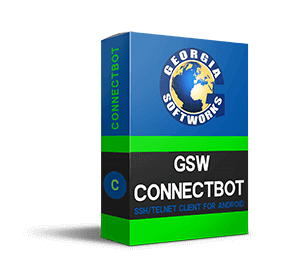
GSW ConnectBot
SSH Client and Enterprise Browser for Android
The GSW ConnectBot client for Android Devices offers the strongest encryption available on the commercial market.
Georgia SoftWorks provides secure high-performance data communications software for Windows Servers and mobile devices in demanding commercial applications. The GSW UTS, our SSH, and Telnet Server for Windows exceeded enterprise expectations by pioneering features essential for productive data collection environments. Our SSH products including the GSW Business Tunnel and our SSH client for Android offer the strongest SSH security commercially available.


PIONEERS IN TELNET/SSH
GSW continues to be the leader in innovation with Telnet/SSH for Windows. Our suite of features are often copied but never equaled!
AUTHORIZED RESELLER PROGRAM
You know your current market well. Offer the best solutions to your customers as a GSW Authorized Reseller.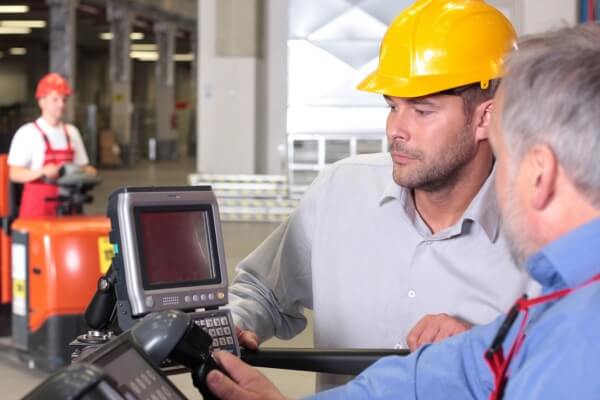
GSW has always been committed to developing the best Telnet Server and SSH Server on the market. Innovation-based user feedback, as well as technology breakthroughs, have been a pattern at Georgia SoftWorks. This has led to the development of many features and new products, such as the GSW FIPS 140-2 compliant SSH Server and Client, the GSW Business Tunnel, and most recently the GSW ConnectBot, an SSH and Telnet Client for Android.
Many customers need custom development to satisfy their target objectives. GSW is open to an abundant variety of ideas ranging from custom development to providing personalization packages to help secure each client's business and take Telnet/SSH to unimaginable levels.
GSW is honored to have the opportunity to gain your trust and will work hard to not only meet but exceed your expectations.
Many customers need custom development to satisfy their target objectives. GSW is open to an abundant variety of ideas ranging from custom development to providing personalization packages to help secure each client's business and take Telnet/SSH to unimaginable levels.
GSW is honored to have the opportunity to gain your trust and will work hard to not only meet but exceed your expectations.
What do our customers say about us?
"I don't typically like to ask a vendor for help and wait for the process to slowly unfold. The Georgia SoftWorks Team is ALWAYS available to help! When inquiring about software needs, or just looking for support, they will answer the call and provide help immediatly"
"I’d like to say that everyone I have had contact with at GSW have been very knowledgeable and helpful. Your support team is outstanding and I say this as an IT professional that has been working with software vendors for over 30 years."
"Thank you for your quick response yesterday. Nobody likes emergency situations, and you were very helpful and efficient with getting us up and running again."
"We picked to use the GSW [Universal Terminal Server] because in the beginning, it was highly recommended by one of our customers. Then, after an exhaustive comparison versus others, it was the must haveoption. We chose the GSW software because of its stability and robustness. Also, the people at GSW. What you say is what you deliver."
"The Georgia SoftWorks [Universal Terminal Server] is an excellent and well-tested tool to connect mobile devices to ERP systems"
New at Georgia SoftWorks:
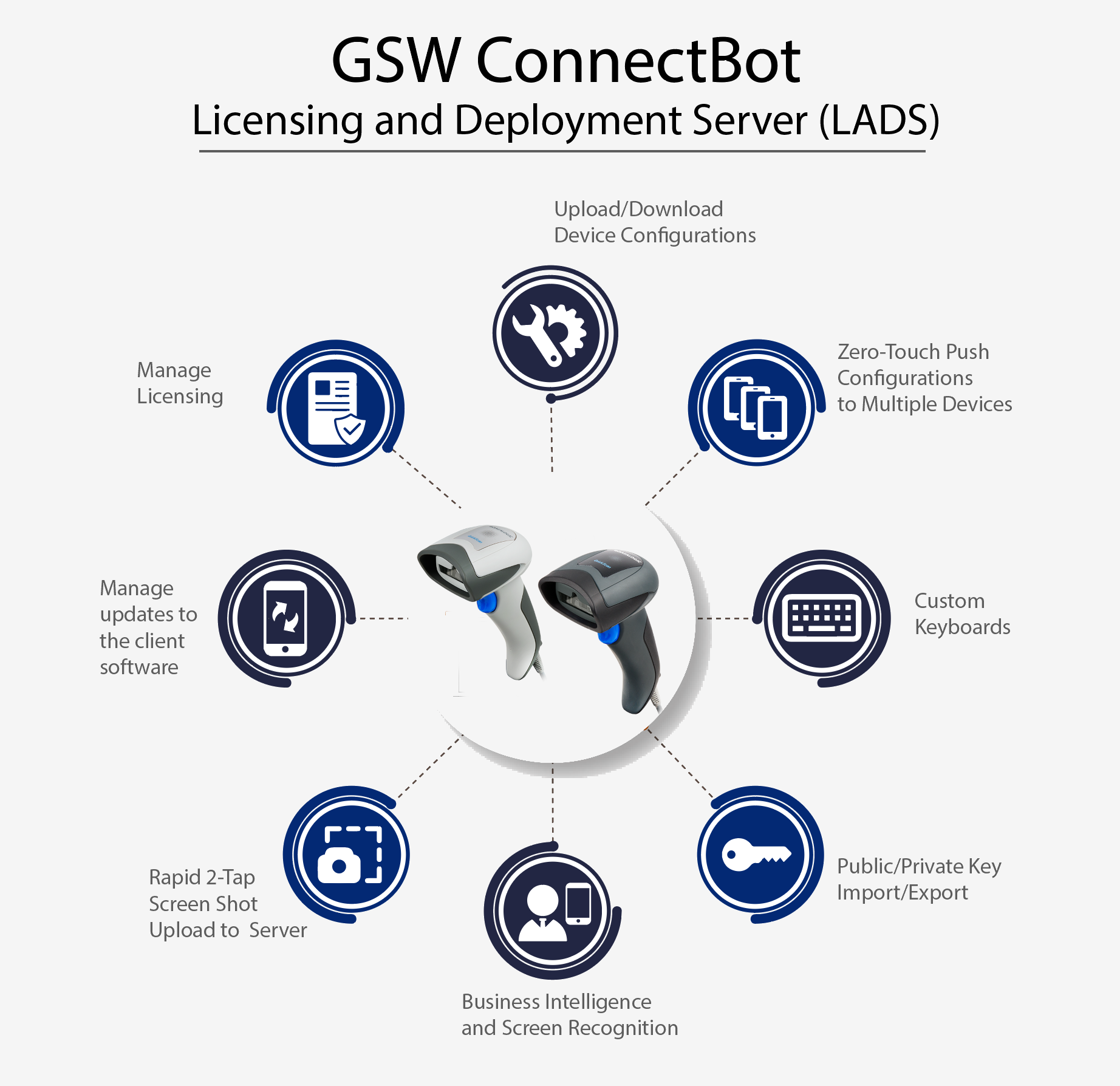
The Georgia SoftWorks Licensing and Deployment Server (LADS)
If you have multiple devices to manage on your GSW ConnectBot (SSH/Telnet Client for Android), the GSW Licensing and Deployment Server (LADS) is a vital piece of software.
LADS enhances the functionality and management of the GSW ConnectBot clients. It is a lightweight mobile device manager.
The Georgia SoftWorks Licensing and Deployment Server (LADS)
If you have multiple devices to manage on your GSW ConnectBot (SSH/Telnet Client for Android), the GSW Licensing and Deployment Server (LADS) is a vital piece of software.
LADS enhances the functionality and management of the GSW ConnectBot clients. It is a lightweight mobile device manager.


